
GenericMenuとは?
GenericMenuは、Unity Editorでコンテキストメニュー(右クリックメニュー)を作るためのクラスです。
エディタ拡張でユーザーに選択肢を出したり、複数のアクションから1つを選ばせたりする場面で使います。
Unityの標準メニューと同じ見た目・操作感のメニューを手軽に作れます。
カスタムエディタウィンドウでのドロップダウンや右クリックメニューなど、活用場面は幅広いです。

GenericMenuの基本的な使い方
GenericMenuの基本的な流れは以下の通りです。
GenericMenuのインスタンスを作成AddItem()でメニュー項目を追加ShowAsContext()でメニューを表示
最もシンプルな実装例
using UnityEditor;
using UnityEngine;

public class SimpleMenuExample : EditorWindow
{
    [MenuItem("Window/Simple Menu Example")]
    private static void ShowWindow()
    {
        GetWindow<SimpleMenuExample>("Simple Menu");
    }

    private void OnGUI()
    {
        if (GUILayout.Button("メニューを表示"))
        {
            ShowMenu();
        }
    }

    private void ShowMenu()
    {
        // GenericMenuのインスタンスを作成
        var menu = new GenericMenu();

        // メニュー項目を追加
        menu.AddItem(new GUIContent("オプション1"), false, () =>
        {
            Debug.Log("オプション1が選択されました");
        });

        menu.AddItem(new GUIContent("オプション2"), false, () =>
        {
            Debug.Log("オプション2が選択されました");
        });

        menu.AddItem(new GUIContent("オプション3"), false, () =>
        {
            Debug.Log("オプション3が選択されました");
        });

        // メニューを表示
        menu.ShowAsContext();
    }
}
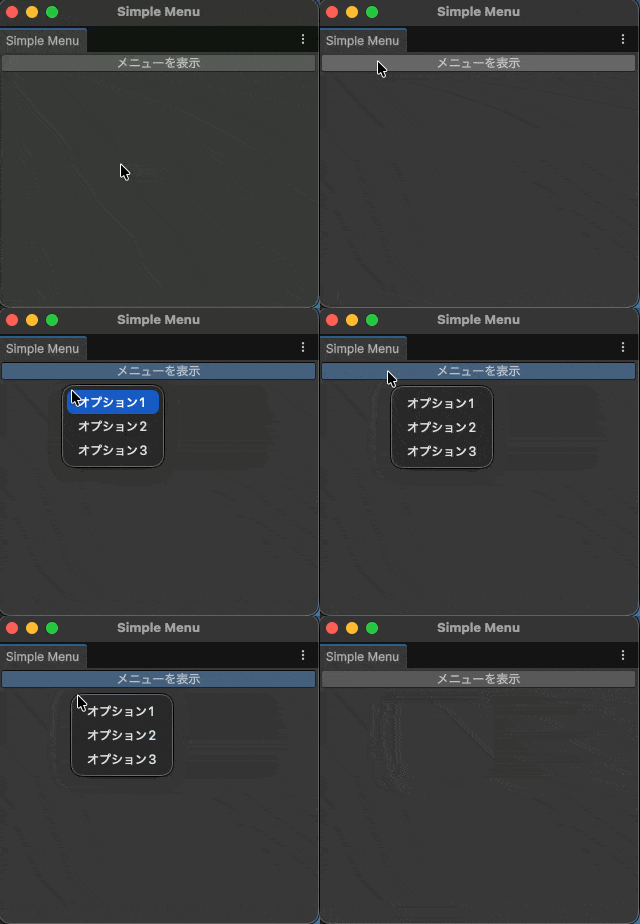
ボタンをクリックすると3つの選択肢を持つメニューが表示される、シンプルなエディタウィンドウです。
メニュー項目の種類
GenericMenuには様々な種類のメニュー項目を追加できます。
通常のメニュー項目
AddItem()メソッドでクリック可能なメニュー項目を追加します。
menu.AddItem(
    new GUIContent("メニュー項目"),  // 表示テキスト
    false,                            // チェックマークの有無
    () => Debug.Log("クリック")       // コールバック
);
チェックマーク付きメニュー
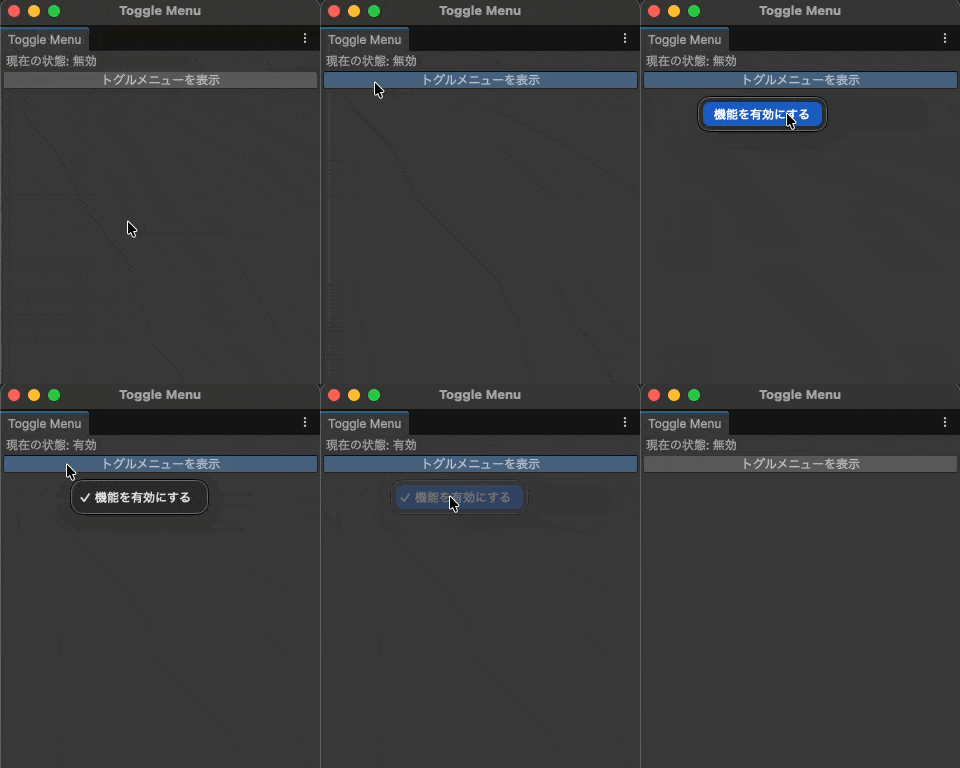
第2引数にtrueを渡すと、メニュー項目にチェックマークが付きます。
using UnityEditor;
using UnityEngine;

public class ToggleMenuExample : EditorWindow
{
    private bool _isEnabled = false;

    [MenuItem("Window/Toggle Menu Example")]
    private static void ShowWindow()
    {
        GetWindow<ToggleMenuExample>("Toggle Menu");
    }

    private void OnGUI()
    {
        GUILayout.Label($"現在の状態: {(_isEnabled ? "有効" : "無効")}");

        if (GUILayout.Button("トグルメニューを表示"))
        {
            ShowToggleMenu();
        }
    }

    private void ShowToggleMenu()
    {
        var menu = new GenericMenu();

        // チェックマーク付きメニュー
        menu.AddItem(
            new GUIContent("機能を有効にする"),
            _isEnabled,  // 現在の状態に応じてチェックを表示
            () =>
            {
                _isEnabled = !_isEnabled;  // トグル
                Debug.Log($"機能: {(_isEnabled ? "有効" : "無効")}");
            }
        );

        menu.ShowAsContext();
    }
}
無効化されたメニュー項目
AddDisabledItem()を使うと、グレーアウトされたクリックできないメニュー項目を追加できます。
using UnityEditor;
using UnityEngine;

private void ShowMenuWithDisabled()
{
    var menu = new GenericMenu();

    // 通常の項目
    menu.AddItem(new GUIContent("実行可能"), false, () => Debug.Log("実行"));

    // 無効化された項目
    menu.AddDisabledItem(new GUIContent("実行不可"));

    // 条件によって有効/無効を切り替え
    if (Selection.gameObjects.Length > 0)
    {
        menu.AddItem(new GUIContent("選択中のオブジェクトを削除"), false, DeleteSelected);
    }
    else
    {
        menu.AddDisabledItem(new GUIContent("選択中のオブジェクトを削除"));
    }

    menu.ShowAsContext();
}

private void DeleteSelected()
{
    foreach (var obj in Selection.gameObjects)
    {
        DestroyImmediate(obj);
    }
}
セパレータ
AddSeparator()でメニューに区切り線を追加できます。
private void ShowMenuWithSeparator()
{
    var menu = new GenericMenu();

    // グループ1
    menu.AddItem(new GUIContent("新規作成"), false, () => Debug.Log("新規作成"));
    menu.AddItem(new GUIContent("開く"), false, () => Debug.Log("開く"));

    // セパレータ
    menu.AddSeparator("");

    // グループ2
    menu.AddItem(new GUIContent("保存"), false, () => Debug.Log("保存"));
    menu.AddItem(new GUIContent("名前を付けて保存"), false, () => Debug.Log("名前を付けて保存"));

    menu.ShowAsContext();
}
階層メニューの作成
メニュー項目のテキストにスラッシュ(/)を含めると、階層的なサブメニューを作れます。
private void ShowHierarchicalMenu()
{
    var menu = new GenericMenu();

    // トップレベルの項目
    menu.AddItem(new GUIContent("ファイル"), false, () => Debug.Log("ファイル"));

    // 階層メニュー
    menu.AddItem(new GUIContent("編集/コピー"), false, () => Debug.Log("コピー"));
    menu.AddItem(new GUIContent("編集/貼り付け"), false, () => Debug.Log("貼り付け"));
    menu.AddItem(new GUIContent("編集/削除"), false, () => Debug.Log("削除"));

    // さらに深い階層
    menu.AddItem(new GUIContent("編集/変換/位置をリセット"), false, ResetPosition);
    menu.AddItem(new GUIContent("編集/変換/回転をリセット"), false, ResetRotation);
    menu.AddItem(new GUIContent("編集/変換/スケールをリセット"), false, ResetScale);

    // 階層内でのセパレータ
    menu.AddSeparator("編集/");

    menu.AddItem(new GUIContent("編集/設定"), false, () => Debug.Log("設定"));

    menu.ShowAsContext();
}

private void ResetPosition()
{
    foreach (var obj in Selection.gameObjects)
    {
        obj.transform.position = Vector3.zero;
    }
}

private void ResetRotation()
{
    foreach (var obj in Selection.gameObjects)
    {
        obj.transform.rotation = Quaternion.identity;
    }
}

private void ResetScale()
{
    foreach (var obj in Selection.gameObjects)
    {
        obj.transform.localScale = Vector3.one;
    }
}
実践例:カスタムエディタウィンドウでの使用
エディタウィンドウ内でコンテキストメニューを表示する実装例です。
using UnityEditor;
using UnityEngine;
using System.Collections.Generic;

public class ItemManagerWindow : EditorWindow
{
    private List<string> _items = new List<string> { "アイテム1", "アイテム2", "アイテム3" };
    private int _selectedIndex = -1;

    [MenuItem("Window/Item Manager")]
    private static void ShowWindow()
    {
        GetWindow<ItemManagerWindow>("Item Manager");
    }

    private void OnGUI()
    {
        GUILayout.Label("アイテムリスト", EditorStyles.boldLabel);

        // アイテムのリストを表示
        for (int i = 0; i < _items.Count; i++)
        {
            var rect = EditorGUILayout.GetControlRect();

            // 右クリック検出
            if (rect.Contains(Event.current.mousePosition) && Event.current.type == EventType.ContextClick)
            {
                _selectedIndex = i;
                ShowItemContextMenu(i);
                Event.current.Use();
            }

            EditorGUI.LabelField(rect, _items[i]);
        }

        GUILayout.Space(10);

        if (GUILayout.Button("アイテムを追加"))
        {
            _items.Add($"アイテム{_items.Count + 1}");
        }
    }

    private void ShowItemContextMenu(int index)
    {
        var menu = new GenericMenu();

        menu.AddItem(new GUIContent("複製"), false, () => DuplicateItem(index));
        menu.AddSeparator("");
        menu.AddItem(new GUIContent("削除"), false, () => DeleteItem(index));
        menu.AddSeparator("");
        menu.AddItem(new GUIContent("上に移動"), false, () => MoveItemUp(index));
        menu.AddItem(new GUIContent("下に移動"), false, () => MoveItemDown(index));

        menu.ShowAsContext();
    }

    private void DuplicateItem(int index)
    {
        _items.Insert(index + 1, _items[index] + " (コピー)");
        Repaint();
    }

    private void DeleteItem(int index)
    {
        _items.RemoveAt(index);
        Repaint();
    }

    private void MoveItemUp(int index)
    {
        if (index > 0)
        {
            var temp = _items[index];
            _items[index] = _items[index - 1];
            _items[index - 1] = temp;
            Repaint();
        }
    }

    private void MoveItemDown(int index)
    {
        if (index < _items.Count - 1)
        {
            var temp = _items[index];
            _items[index] = _items[index + 1];
            _items[index + 1] = temp;
            Repaint();
        }
    }
}
ユーザーデータの活用
AddItem()には、ユーザーデータを渡すオーバーロードがあります。ラムダ式を使わずに、データを渡して処理を共通化できます。
using UnityEditor;
using UnityEngine;

public class UserDataMenuExample : EditorWindow
{
    private enum Action
    {
        Create,
        Edit,
        Delete
    }

    [MenuItem("Window/User Data Menu Example")]
    private static void ShowWindow()
    {
        GetWindow<UserDataMenuExample>("User Data Menu");
    }

    private void OnGUI()
    {
        if (GUILayout.Button("メニューを表示"))
        {
            ShowMenu();
        }
    }

    private void ShowMenu()
    {
        var menu = new GenericMenu();

        // ユーザーデータを使った実装
        menu.AddItem(new GUIContent("作成"), false, OnMenuItemSelected, Action.Create);
        menu.AddItem(new GUIContent("編集"), false, OnMenuItemSelected, Action.Edit);
        menu.AddItem(new GUIContent("削除"), false, OnMenuItemSelected, Action.Delete);

        menu.ShowAsContext();
    }

    // コールバックメソッド(userDataを受け取る)
    private void OnMenuItemSelected(object userData)
    {
        var action = (Action)userData;

        switch (action)
        {
            case Action.Create:
                Debug.Log("作成が選択されました");
                break;
            case Action.Edit:
                Debug.Log("編集が選択されました");
                break;
            case Action.Delete:
                Debug.Log("削除が選択されました");
                break;
        }
    }
}
インデックスを渡す実装
private void ShowItemMenu(int itemIndex)
{
    var menu = new GenericMenu();

    menu.AddItem(new GUIContent("編集"), false, EditItemByIndex, itemIndex);
    menu.AddItem(new GUIContent("削除"), false, DeleteItemByIndex, itemIndex);

    menu.ShowAsContext();
}

private void EditItemByIndex(object userData)
{
    int index = (int)userData;
    Debug.Log($"アイテム {index} を編集");
}

private void DeleteItemByIndex(object userData)
{
    int index = (int)userData;
    Debug.Log($"アイテム {index} を削除");
}
GUIContentの活用
GUIContentを使うと、メニュー項目にアイコンやツールチップを追加できます。
private void ShowMenuWithIcons()
{
    var menu = new GenericMenu();

    // アイコン付きメニュー
    menu.AddItem(
        new GUIContent("新規作成", EditorGUIUtility.IconContent("CreateAddNew").image),
        false,
        () => Debug.Log("新規作成")
    );

    // ツールチップ付きメニュー
    menu.AddItem(
        new GUIContent("削除", "選択中のアイテムを削除します"),
        false,
        () => Debug.Log("削除")
    );

    // アイコンとツールチップの両方
    menu.AddItem(
        new GUIContent("保存", EditorGUIUtility.IconContent("SaveAs").image, "現在の状態を保存します"),
        false,
        () => Debug.Log("保存")
    );

    menu.ShowAsContext();
}
気をつける点
メニュー項目の重複
同じテキストのメニュー項目を複数追加すると、最後に追加されたものだけが残ります。
// ❌ 悪い例:同じ名前の項目
menu.AddItem(new GUIContent("実行"), false, Action1);
menu.AddItem(new GUIContent("実行"), false, Action2);  // これだけが表示される

// ✅ 良い例:異なる名前を使用
menu.AddItem(new GUIContent("実行 A"), false, Action1);
menu.AddItem(new GUIContent("実行 B"), false, Action2);
ShowAsContextとDropDownの違い
ShowAsContext()はマウスカーソルの位置にメニューを表示しますが、特定の位置に表示したい場合はDropDown()を使います。
private void ShowMenuAtRect(Rect buttonRect)
{
    var menu = new GenericMenu();

    menu.AddItem(new GUIContent("オプション1"), false, () => Debug.Log("1"));
    menu.AddItem(new GUIContent("オプション2"), false, () => Debug.Log("2"));

    // 指定した矩形の位置にメニューを表示
    menu.DropDown(buttonRect);
}
ラムダ式でのthis参照
ラムダ式内でthisを参照すると、エディタウィンドウが閉じた後もオブジェクトへの参照が残る場合があります。
短命なメニューであれば通常問題になりませんが、頻繁にメニューを生成するツールでは、ユーザーデータを使った書き方の方が安全です。
// ラムダ式でthisを参照するパターン
menu.AddItem(new GUIContent("実行"), false, () =>
{
    this.DoSomething();
});

// ユーザーデータを使うパターン
menu.AddItem(new GUIContent("実行"), false, DoSomethingCallback, null);

private void DoSomethingCallback(object userData)
{
    DoSomething();
}
まとめ
GenericMenuを使うと、Unityの標準UIと統一感のあるコンテキストメニューを作れます。
階層メニューやチェックマーク、無効化項目など表現方法も豊富です。
エディタ拡張でちょっとしたメニューが欲しくなったら、GenericMenuを試してみてください。